

USB Hub vs Docking Station: Which Do You Need?
September 8, 2026
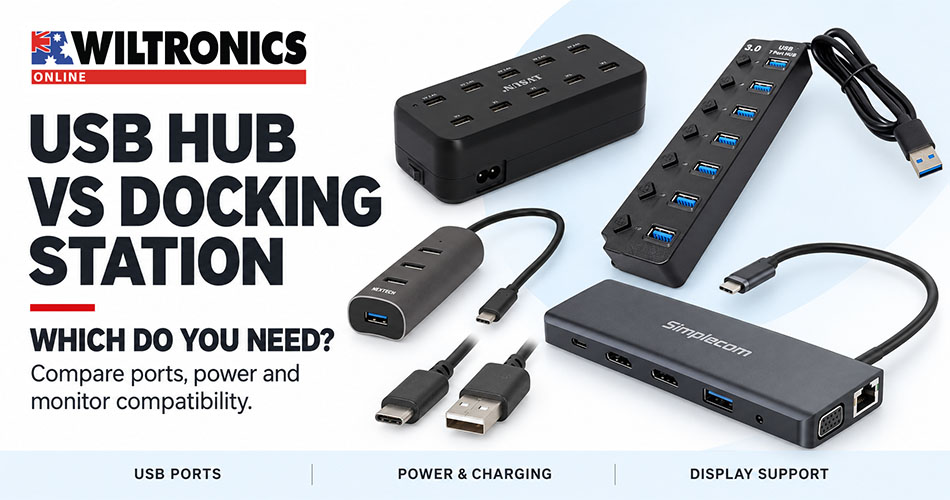
USB Hub vs Docking Station: Which Do You Need?
Quick answer: Choose a USB hub when you need more USB connections for peripherals. Consider a powered hub when connected devices need more power than the computer’s port can comfortably supply. Choose a docking station when you also need connections such as a monitor, wired network or laptop charging. Check the exact computer, dock and cable specifications before buying: matching plugs alone do not establish compatibility.
A laptop can have enough processing power for your work and still run out of connections. Add a keyboard, mouse, external drive and presentation screen, and its available ports soon disappear.
The right expansion device depends on what you want to connect. Counting sockets is only the beginning. Power requirements, data speed, display support and charging capabilities determine whether the setup works as intended.
This guide compares the options in the Wiltronics USB hub range and explains the checks that help prevent an unsuitable purchase.
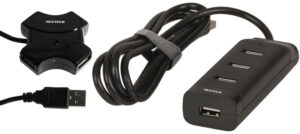
Compare Wiltronics USB hubs and docking options
Use this table to shortlist a model, then check its power and compatibility requirements against your equipment.
| Wiltronics product | Best suited to | What to check |
|---|---|---|
| JXC4979 — USB 3.0 Hub 4 Port | Compact four-port peripheral expansion without a separate power adaptor | Combined device power demand |
| CM1100 — 7 Port USB Hub 3.0 High Speed | Connecting more USB accessories | Listed 5Gbps is a maximum interface rate, not a per-device file-transfer guarantee |
| JXC4958 — USB Hub 4 Port USB 2.0 | Basic peripherals where USB 2.0 is sufficient | Additional Micro-B power input requirements, if used |
| CM1099D — Powered 7 Port USB 3.0 Hub | Peripheral setups needing an external power supply | Included 5V, 4A adaptor serves the unit; check per-port limits |
| JXC4306 — USB Type C Hub 4 Port | USB-A accessories on a compatible USB-C computer | A peripheral hub; no listed HDMI output |
| CM1114 — Simplecom CHN612 12-in-1 Dock | Combining displays, Ethernet and peripherals | Host video capability, operating system and display limits |
| PS1910 — USB Intelligent Charger 10 Port 60W | Charging multiple compatible devices | Dedicated charger; 60W is the total output |
Just need more USB ports?
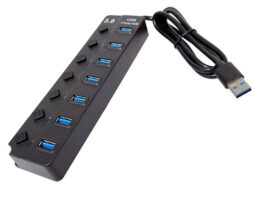
For a keyboard, mouse and occasional flash drive, start with the JXC4979 four-port hub. Consider the CM1100 seven-port model when more connections are needed, or the JXC4958 USB 2.0 hub for basic peripherals without a higher-speed requirement. The product links above provide their individual specifications.
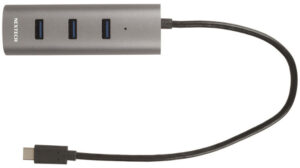
If the computer has USB-C and the accessories use USB-A, shortlist the JXC4306. Check the host connector before ordering.
Count the devices that will be connected at the same time, then check their combined power requirements. Leave enough physical space for bulky flash drives and wireless receivers: neighbouring sockets can become difficult to use even when the port count looks sufficient.
Need external power for your peripherals?
A bus-powered hub draws power from the computer. An externally powered hub adds a separate supply, subject to the hub’s total and per-port limits.
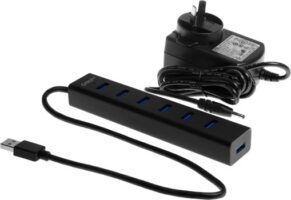
The CM1099D powered seven-port hub is the option to compare when the setup needs an included mains adaptor. Its 5V, 4A supply rating describes overall capacity, not 4A at each socket.
A separate supply can address a power shortage, but it will not repair a damaged cable or make an unsupported device compatible. If devices disconnect as more equipment is added, check the load before choosing a replacement.
USB-C does not tell you every capability
USB-C identifies a connector format. The available data, charging and video functions still depend on the product.
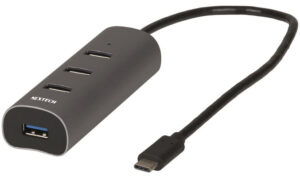
The USB Type C Hub 4 Port — JXC4306 provides a way to connect USB-A peripherals to a compatible USB-C computer. Its listed connections do not make it an HDMI docking station.
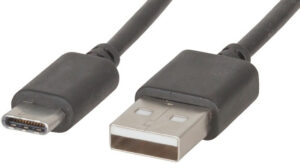
Cable specifications matter too. Wiltronics’ USB Type-C to USB A Cable — CM4067-1 is specified as USB 2.0 despite having a USB-C connector. Choose by the required function and data rating, not the plug shape alone.
The USB Implementers Forum’s cable guidance likewise explains that cables have different capabilities and should be selected for the intended application.
Connecting monitors, Ethernet and accessories?
A docking station becomes useful when the computer needs several types of connection at the same time.
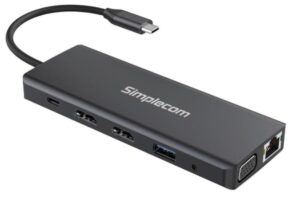
The Simplecom CHN612 USB-C 12-in-1 Multiport Docking Station — CM1114 combines USB-A ports, HDMI and VGA outputs, Gigabit Ethernet, memory-card slots, audio and a USB-C PD charging input.
For a teacher’s desk or home office, that can bring multiple accessories together at one connection point. Before ordering, check these three details.
1. Does the computer’s USB-C port support video?
The CHN612 requires DisplayPort Alternate Mode for its video outputs. A USB-C port that provides only data or charging cannot supply that missing video capability through this dock. Check the computer manufacturer’s specifications for the exact port you intend to use.
2. What monitor arrangement is supported?
The CHN612 lists single-HDMI output up to 4K at 30Hz, or dual-HDMI output up to 1920 × 1080 at 60Hz per external monitor. Its MST multi-monitor extension feature is for Windows; macOS does not support that feature on this dock. These limits are documented in the Simplecom CHN612 specifications.
Write down the number of independent desktops you need, together with resolution and refresh rate. Three video sockets should never be treated as a guarantee of three independent external desktops.
3. Which port is for charging?
The CHN612’s USB-C PD socket is a charging input, not an additional USB-C data port. Confirm the charger and cable requirements for your laptop; a dock’s maximum PD rating is not a guarantee of the charging power your complete setup will achieve.
Only need to charge devices?
If the task is simply charging a collection of devices, computer connectivity may be unnecessary.
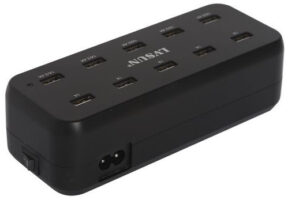
The USB Intelligent Charger 10 Port 60W — PS1910 is a dedicated charging option with a listed total output of 60W. That total is shared across the unit; it is not 60W at every socket.
For a classroom charging area, record each device’s requirements and how many must charge simultaneously. Do not assume every port provides the same charging rate, or that a multiport charger provides computer data transfer.
Troubleshooting before you replace the hub
| Symptom | Useful first check |
|---|---|
| A device does not appear | Connect it directly to the computer and try a known-good data cable |
| Devices disconnect after more are added | Reduce the connected load and check the hub’s power limits |
| A USB-C dock’s USB ports work but its monitor does not | Confirm host video support, display input selection and the video cable |
| Two screens show the same picture | Check operating-system settings and the dock’s supported display modes |
| A laptop does not charge through the dock | Check the PD input, charger, cable and laptop charging requirements |
| Storage transfers are slower than expected | Check the complete data path, including the host port, cable and storage device |
Change one part at a time. Testing the same device directly, then through the hub, is more useful than replacing several accessories together and losing track of the cause.
Before you buy: a practical checklist
- Record the computer model and the capabilities of its available ports.
- List every accessory that will be connected simultaneously.
- Identify which devices draw USB power and their requirements.
- Specify monitor count, resolution and refresh rate if applicable.
- Confirm whether laptop charging is required through the same connection.
- Check included cables and power adaptors, plus any accessories needed separately.
For school purchasing, trial the proposed combination on the actual computer model before standardising a class set. Test the intended software and peripherals together, including reconnecting after the computer wakes from sleep.
Frequently asked questions
Is a docking station better than a USB hub?
Only if you need its additional functions. For a keyboard, mouse and other USB peripherals, a suitable hub may meet the requirement with fewer connections to configure.
Does a powered USB hub charge a laptop?
A hub’s external supply does not establish laptop-charging support. Look for explicit host charging capability that matches the laptop’s requirements.
Should I buy a hub or a charging station for a classroom?
Choose a data hub for peripherals that must communicate with a computer. Choose a charging station when the task is replenishing device batteries. For a class set, check the simultaneous charging load before selecting the number of ports.
Find the right connections at Wiltronics
For extra peripheral connections, compare the compact and powered models in the Wiltronics USB hub range. For displays and networking, check the CHN612 against your computer’s capabilities before ordering. Complete the setup with suitable USB computer leads, using the required data and power ratings.
© Electrotech Brands Pty Ltd 2026
Write a Comment
You must be logged in to post a comment.